
Prompt library and variables
Save prompts, add {{variables}}, and insert them with a slash.
Save the prompts you use again and again, then insert them in two keystrokes. Prompts can include variables you fill in each time.
Start with the built-in prompts
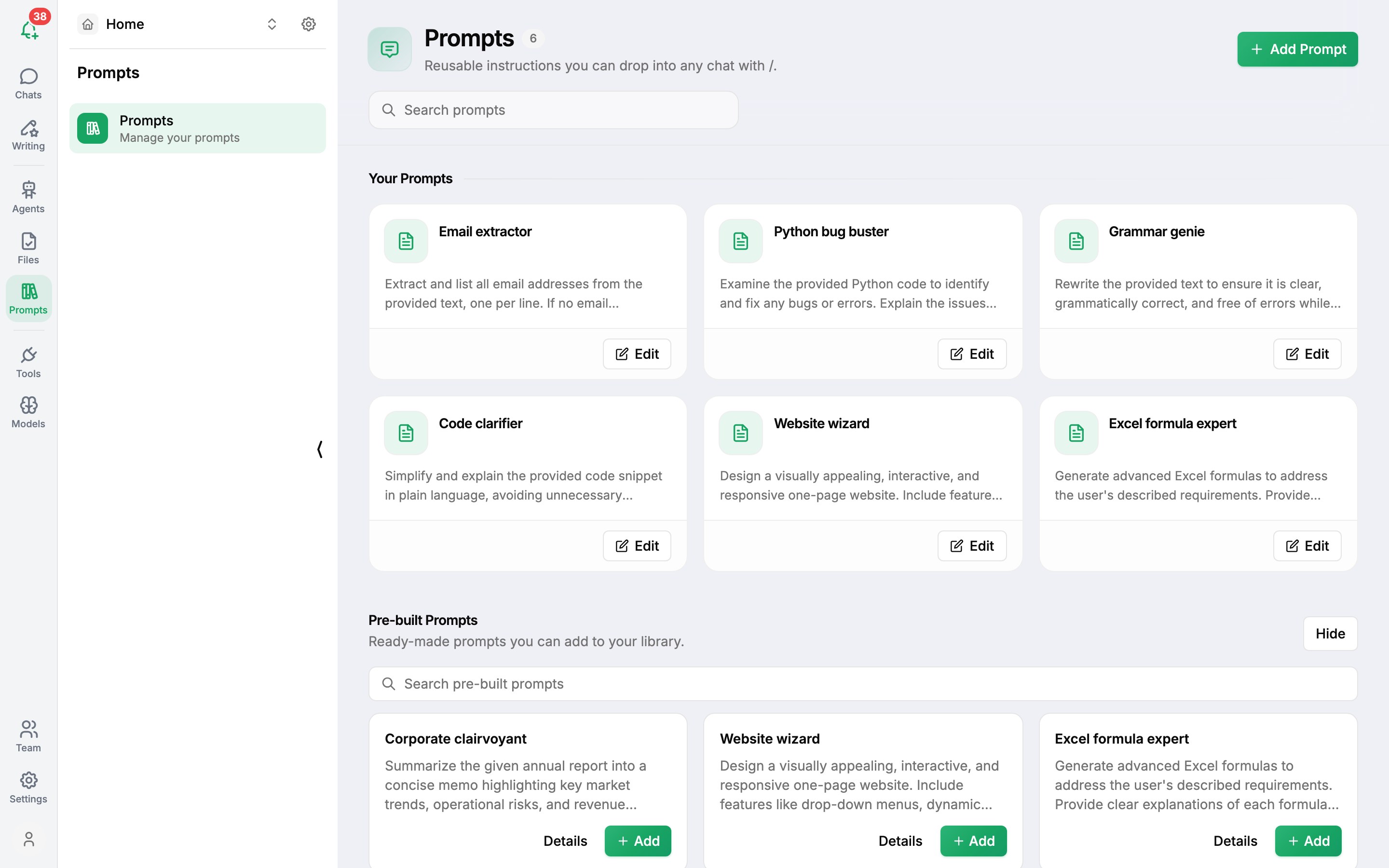
Open Prompts in the left icon bar. Your Prompts already includes useful templates such as Grammar genie, Python bug buster, Excel formula expert, Website wizard, Email extractor and Code clarifier.
Below them, Pre-Built Prompts has many more - for annual reports, meeting minutes, SQL, resumes, customer replies, automation scripts and more. Use Search Pre-built Prompts to find one and add it to your library.
Create a prompt
- Open Prompts in the left icon bar and click + Add Prompt.
- Give it a Name you'll recognise when searching.
- Write the Prompt content.
- Save.
Add variables
Wrap any part you want to change each time in double curly braces:
Write a {{tone}} follow-up email to {{name}} about {{topic}}.
Keep it under 120 words and end with a clear next step.
When you use the prompt, AI Assistify asks you to Enter Prompt Variables - one field per variable - then fills them in for you.
Use a prompt
- Type
/in the message box (or click Prompts under it). - Start typing the prompt's name to filter, use the arrow keys to choose, and press ↵ Enter.
- Fill in any variables, review the text, and send.
Was this article helpful?