
Add and manage API keys
Connect OpenAI, Claude, Gemini and 10 more providers with your own keys - and how they're protected.
AI Assistify connects to AI providers with your own API keys. You pay the provider directly at their prices, and you can use as many providers as you like side by side.
Add or change a key
- Click Settings (the gear) in the left icon bar.
- Open API Keys - the API Keys Management page.
- Find the provider and paste your key into its field. Click Get API Key next to a provider to open its key page if you don't have one yet.
- Click Securely Save Keys. You'll see "Keys saved successfully on your device."
The models for that provider are now available in the model selector.
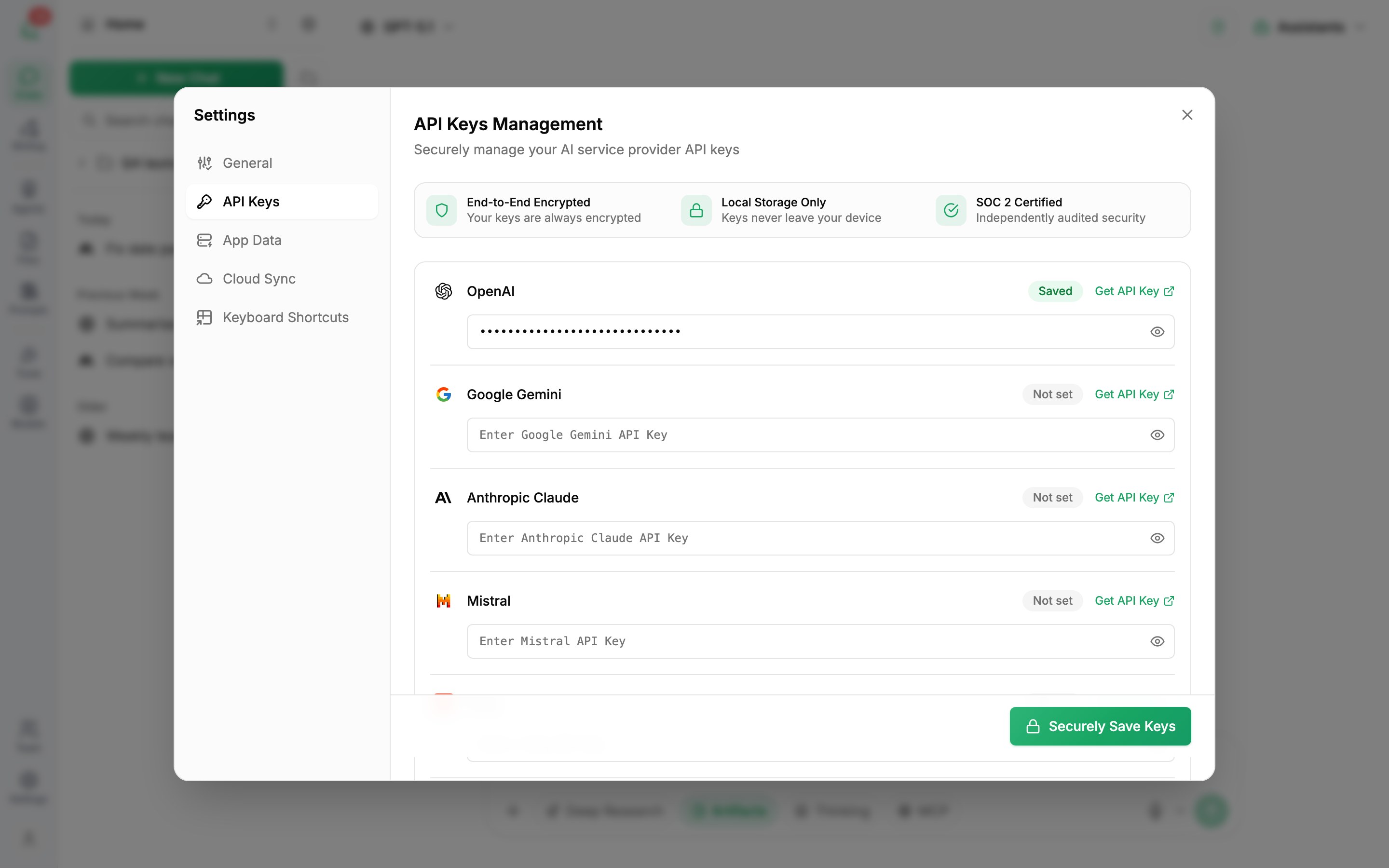
Supported providers
| Provider | Notes |
|---|---|
| OpenAI | GPT models, DALL-E 3 image generation |
| Google Gemini | Gemini models |
| Anthropic Claude | Claude models |
| Mistral, Groq, Perplexity | Fast and specialised models |
| OpenRouter | Access to many models through one key |
| DeepSeek, Grok | Reasoning and general models |
| Moonshot AI (Kimi), Z.AI (GLM), MiniMax, Meta (Muse), Xiaomi MiMo | Newer providers |
| Alibaba Qwen | Needs both an API key and your Model Studio OpenAI-compatible base URL |
How your keys are protected
- Local storage only - keys are stored on your device and aren't saved to our servers.
- Encrypted - keys are encrypted at rest.
- You can remove a key at any time by clearing its field and saving.
Keys set by your administrator
In a company workspace your admin can provide keys for everyone. You'll see "{provider} API key set by admin." under that provider, and Managed by {workspace} at the top of the page. You don't need to add anything, and you can't change those keys yourself.
Something wrong?
If messages fail with a key error, see Fix API key errors.
Was this article helpful?