
Quick start: your first chat in 60 seconds
Create an account, add an API key, pick a model and send your first message.
AI Assistify gives you one place to chat with the leading AI models - OpenAI, Claude, Gemini, Grok, DeepSeek and more - using your own API keys. This guide takes you from zero to your first conversation in about a minute.
Before you begin
You need two things:
- A browser. AI Assistify runs at chat.aiassistify.org on desktop and mobile. You can also install it as an app from your browser's address bar.
- An API key from at least one AI provider, such as OpenAI, Anthropic or Google. You pay the provider directly for what you use; AI Assistify never marks it up.
Step 1: Create your account
- Go to chat.aiassistify.org/sign-up.
- Enter your email and choose a password.
- Confirm your email if asked. You land in your Home workspace, ready to chat.
Step 2: Add an API key
- Click the Settings icon (the gear) at the bottom of the left sidebar.
- Open API Keys.
- Find your provider - for example OpenAI or Anthropic Claude - and click Get API Key if you don't have one yet.
- Paste the key into the field and click Securely Save Keys.
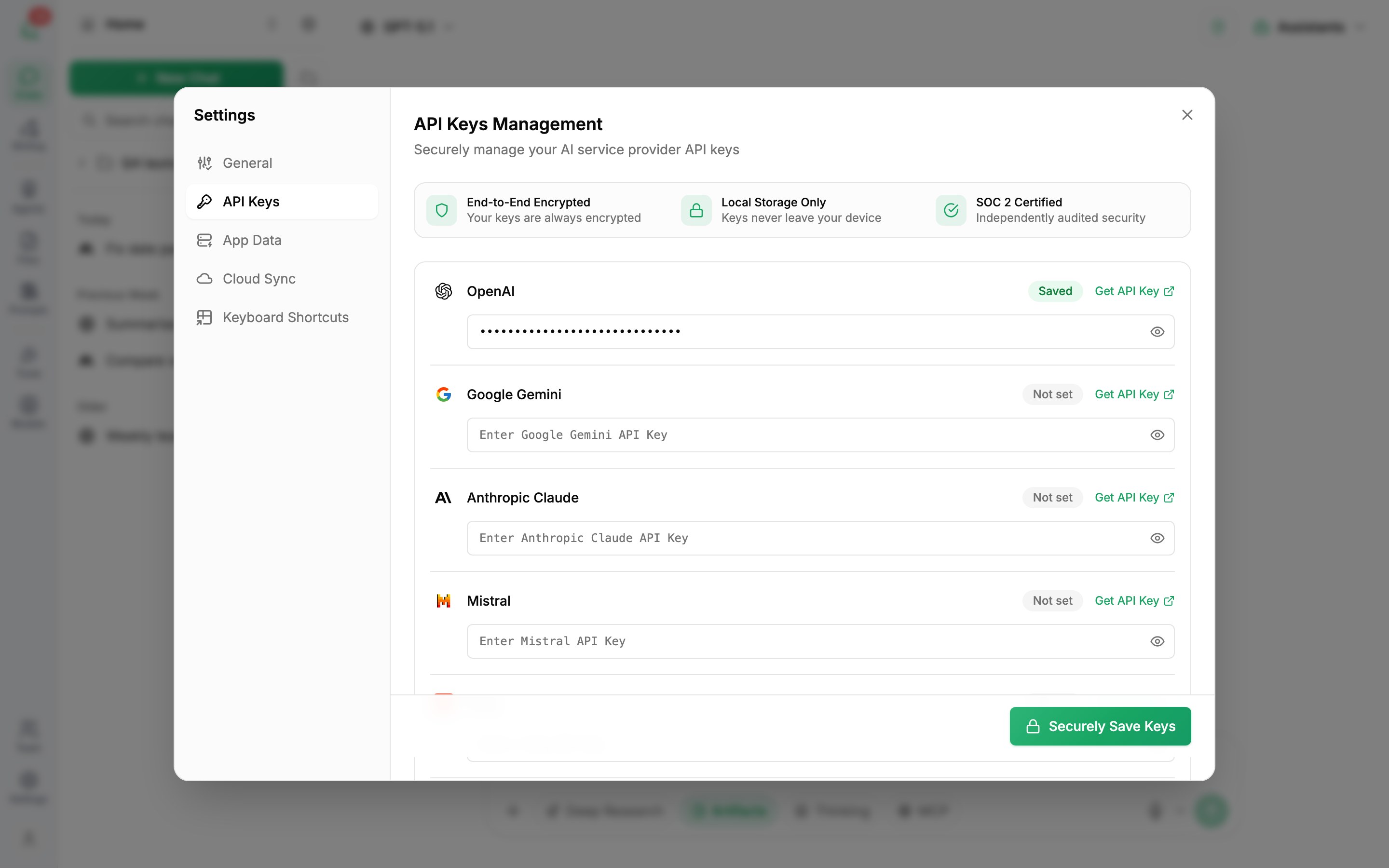
Supported providers include OpenAI, Google Gemini, Anthropic Claude, Mistral, Groq, Perplexity, OpenRouter, DeepSeek, Grok, Moonshot AI (Kimi), Z.AI (GLM), MiniMax, Meta (Muse), Xiaomi MiMo and Alibaba Qwen.
If you're part of a company workspace, your administrator may have already set keys for you. In that case you'll see "API key set by admin" and there's nothing to add.
Step 3: Choose a model
Open the model selector at the top of the chat and pick a model from a provider you added a key for. Not sure which one? Start with a fast general-purpose model; you can switch at any time, even in the middle of a conversation.
Step 4: Send your first message
Click the message box - or press CtrlL to jump to it - type a question and press ↵ Enter. Use ⇧ Shift↵ Enter to add a new line without sending.
The message box also has shortcuts for the things you'll use most:
| Type | To |
|---|---|
@ | Chat with one of your assistants |
/ | Insert a saved prompt |
# | Attach one of your files |
! | Turn on a tool, such as web search |
Where to go next
- Attach files - drop a PDF, Word document or spreadsheet into the chat and ask questions about it.
- Try Artifacts - ask for a web page, a chart or a document and it opens in a side panel you can preview and download. See Working with Artifacts.
- Create an assistant - save instructions, files and tools as a reusable assistant you can call with
@.
Was this article helpful?