
Chat with files and documents
Attach PDFs, Word documents, spreadsheets and images, and control how they're used.
Give the AI your documents and ask questions about them - summarise a report, compare two contracts, pull figures out of a spreadsheet. AI Assistify finds the most relevant passages and uses them to answer.
Supported files
| Type | Extensions |
|---|---|
| Documents | .pdf, .docx, .md, .txt |
| Data | .csv, .json |
| Images | .png, .jpg and other image formats - vision models only |
Attach a file to a message
Pick whichever is quickest:
- Click the paperclip (Attach file) under the message box.
- Drag and drop a file onto the chat.
- Paste an image with CtrlV (vision models).
The file appears above the message box. Type your question and send.
Reuse files you've uploaded
Files you attach are saved under Files in the left icon bar, so you can use them again. You can also upload there directly with + Add File. Each card shows the file's type, size and length in tokens.
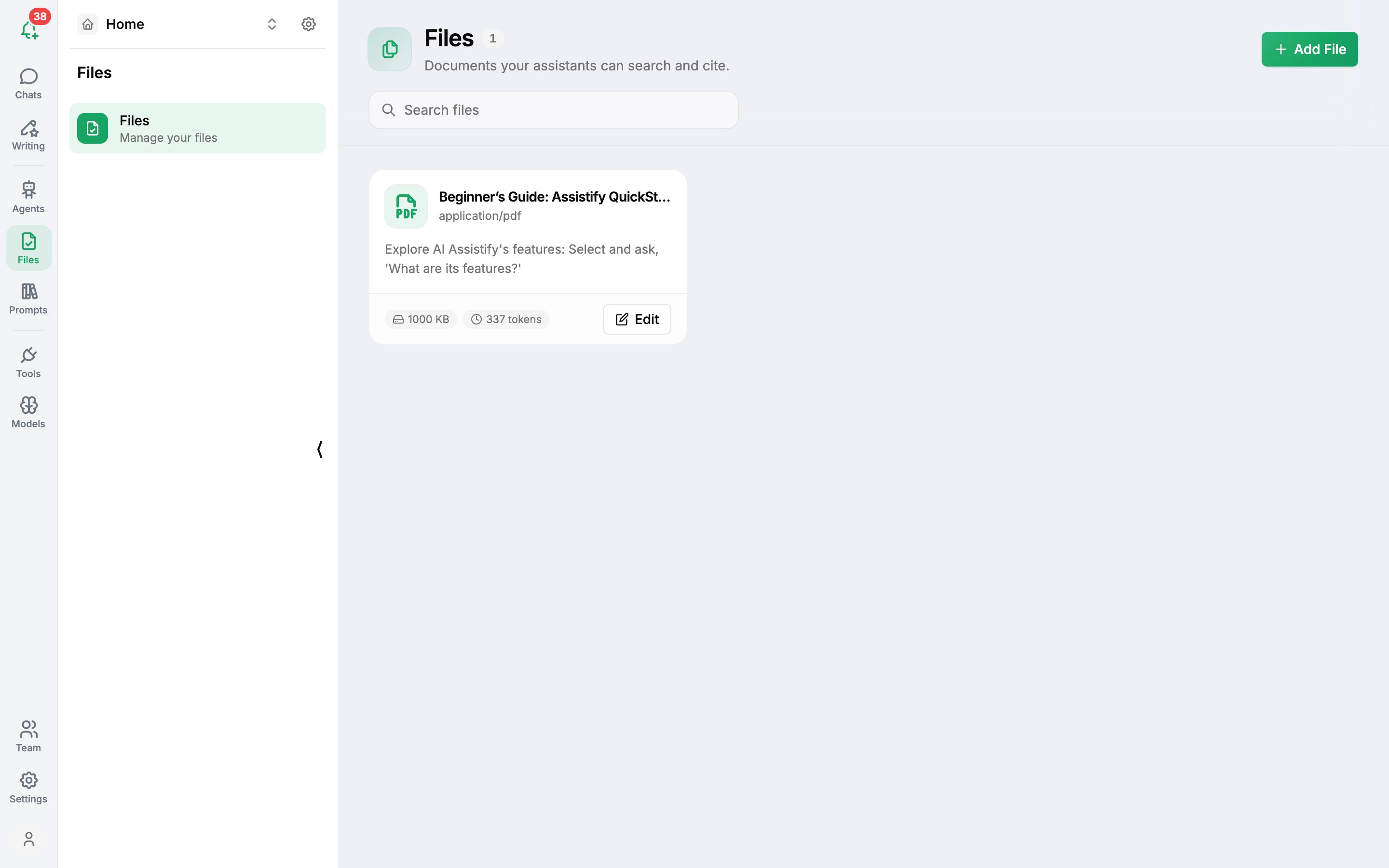
To reuse a file in a chat:
- Type
#in the message box, then pick a file. - Or click the Files button under the message box.
Click Edit on a file's card to rename it, add a description (it helps the AI understand what the file is for) or delete it.
Retrieval settings
When a chat has files, open Chat Retrieval Settings to control how they're used:
- Enable file retrieval - turn off to send your message without looking anything up in the files.
- Source Count (1-10) - how many passages to pull from your files for each question. More sources give fuller answers but use more of the model's context.
Click Save & Close to apply.
Collections
A collection groups related files - for example "HR policies" or "Product specs" - so you can attach them all at once. Give it a name, a description, and choose its files.
Good to know
- Answers come from the passages the AI retrieves. For very specific questions, mention the section or page you mean.
- The number of files you can store depends on your plan.
Was this article helpful?